Configure to use the accounts which follow OAuth2 protocol |
Feedback |
iPortal, iServer and iEdge
not only support using the existing account to log in, but also support
using the third-party account which uses OAuth2.0 protocol. Below will
show how to use it in iServer.
iServer currently supports
directly configuring QQ, Sina Weibo accounts login, also supports the
use of other third-party accounts which follow OAuth2.0 protocol through
extensions, please refer to: Extension for
the use of other third-party accounts which follow OAuth2.0 protocol
.
Third-party account login configuration
Access iServer Manager, click Security>Third-party
Configuration to get the configuration web page, and start to configure.
Configure QQ account login
- First, the iServer administrator needs to apply
the APP ID and APP KEY parameters in http://connect.qq.com/login,
for details please see: QQ
website access instructions. Note: the administrator needs to
copy the meta information which is used to verify the site address
to the related text box to the configuration web page.
- Second, click "Add the third party login
configuration" on the "Third-party
login configuration" web page to open a dialog, fill APP
ID, APP KEY and callback domain(the same one which is used to get
APP ID and APP KEY), click OK to finish the QQ account login
configuration.
- At last, the administrator can view the configured
QQ account login way on the "Third-party login configuration"
web page, also can delete, edit and start/stop the login way.
- The service domain provided by the administrator
for the users must be identical with the related callback domain
on "Third-party login configuration" web page.
Configure Sina Weibo account login
- First, the iServer administrator needs to apply
the App Key and App Secret parameters in http://open.weibo.com/index.php,
for details please see: Website
access instructions. Note: the administrator needs to copy the
meta information which is used to verify the site address to the related
text box to the configuration web page.
- Second, click "Add the third party login
configuration" on the "Third-party
login configuration" web page to open a dialog, fill App
Key, App Secret and callback domain(the same one which is used to
get App Key and App Secret), click OK to finish the Sina Weibo
login configuration.
- At last, the administrator can view the configured
Sina Weibo account login way on the "Third-party
login configuration" web page, also can delete, edit and start/stop
the login way.
- The service domain provided by the administrator
for the users must be identical with the related callback domain
on "Third-party login configuration" web page.
Log in with third-party accounts
After the configuration, you can use the service domain(callback
domain) to access the login page, view all the configured login ways,
and use the third-party account to login iPortal, iServer or iEdge.
Below will introduce how to login iServer with QQ account.
Click the button QQ account login to pop up the login
page, input the correct QQ account name and password. If it is the first
time to use this login way, after clicking "Authorize and login",
it will display the following dialog:
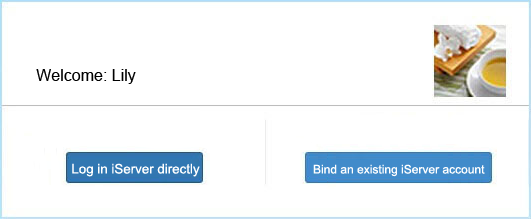
If you already have an iServer account, please click
"binding iServer account" to bind QQ account and iServer account,
next time you can use both of them to login iServer, and when you use
the QQ account to login, it will grant you the same privileges with the
iServer account role.
If you don't have an iServer account, or you don't want to bind iServer
account and QQ account, please click Immediate login button. The user
name will be a random string which can be viewed in the user management
page(http://localhost:8090/iserver/manager/security/users). Note: If you
don't bind the two accounts at the first time, you can only use QQ account
to login iServer later on, and only can access the service instances.